1. Getting Started
1.1. Currency settings
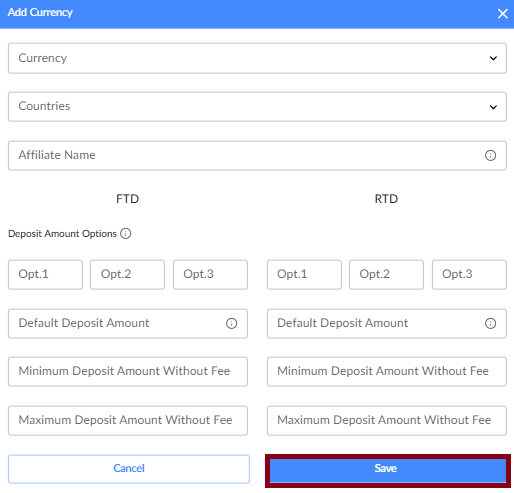
Configuring the currency settings in Cashier V2 ensures that payment processing aligns with the business needs. This setup determines the suggested, minimum, and maximum amounts displayed to customers on the deposit page, based on currency, country, and affiliate.
1.1.1. Steps to configure currency settings
To access currency settings:
Navigate to Brand Settings > Currency Settings in the back-office menu. Then, click Add New Currency.
This option is available under certain user roles.

1.1.2. Steps to configure currency settings
- Define supported currencies
Select the currencies your business will support for transactions. For example, the currencies used for the items, services, and products your business offers.
- Specify supported countries
Select the countries where your business will operate. For example, locations where you offer products, services, or support.
The affiliate name is optional and applies only to customers of affiliated companies.
- Configure FTD/RTD settings
Set up separate configurations for First-Time Deposit (FTD) and Recurring Deposit (RTD). This includes:
- Deposit amount options: Define three preset deposit amounts for the deposit page, arranged from smallest to largest.
- Default deposit amounts: Choose the suggested amounts to display for a customer’s first transaction.
- Minimum and maximum deposit amounts: Configure high-level minimum and maximum amount limits.
- Save and apply changes
Review your settings. Click Save to apply changes across the system.
Supported currencies and countries, along with configurations for suggested, minimum, and maximum amounts, can be defined separately for each affiliate.
1.1.3. Currency management
Currencies can be edited or deleted.
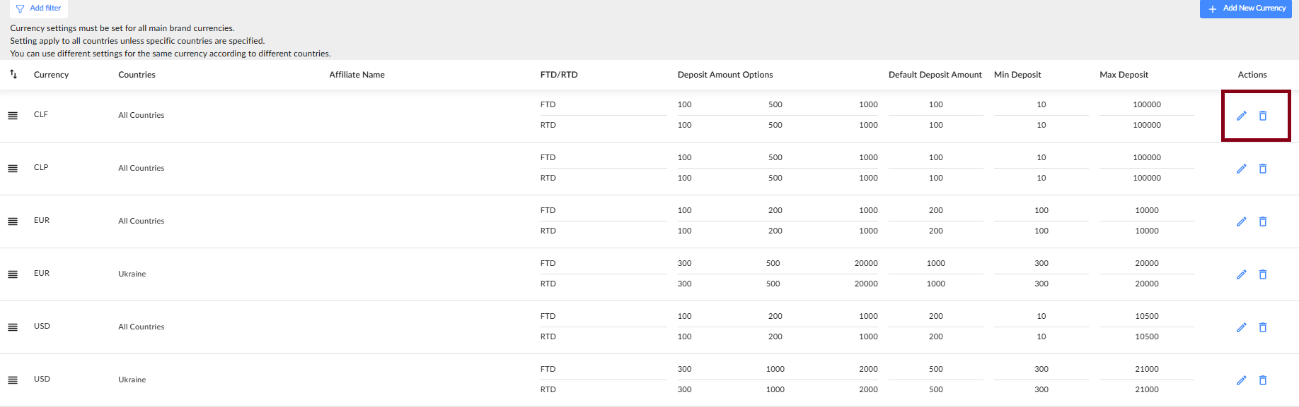
Filters can be set based on currency, country, and affiliate name.

Your currency settings are now configured. Let's proceed with payment provider configurations.
1.2. Payment service provider (PSP) configuration
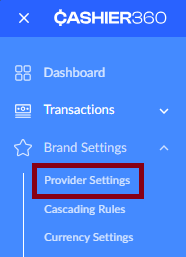
Navigate to Provider Settings in the back-office.
On this page, you can:
- add new payment providers.
- view all existing payment providers for the brand.
- view and manage the settings for each payment provider.
1.2.1. Adding a new PSP
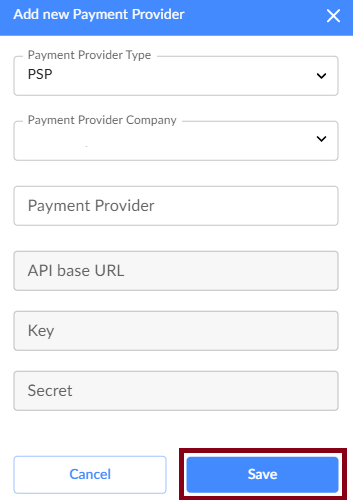
- Click Add New Payment Provider.
- Choose PSP and select the payment provider company from the list.
- Enter the required API credentials and authentication details.
- Click Save to apply the changes and proceed to advanced settings.
1.2.2. Accessing PSP advanced settings
To access the advanced settings for the newly created PSP, click Edit on the right side of the payment provider list.

1. Configurations
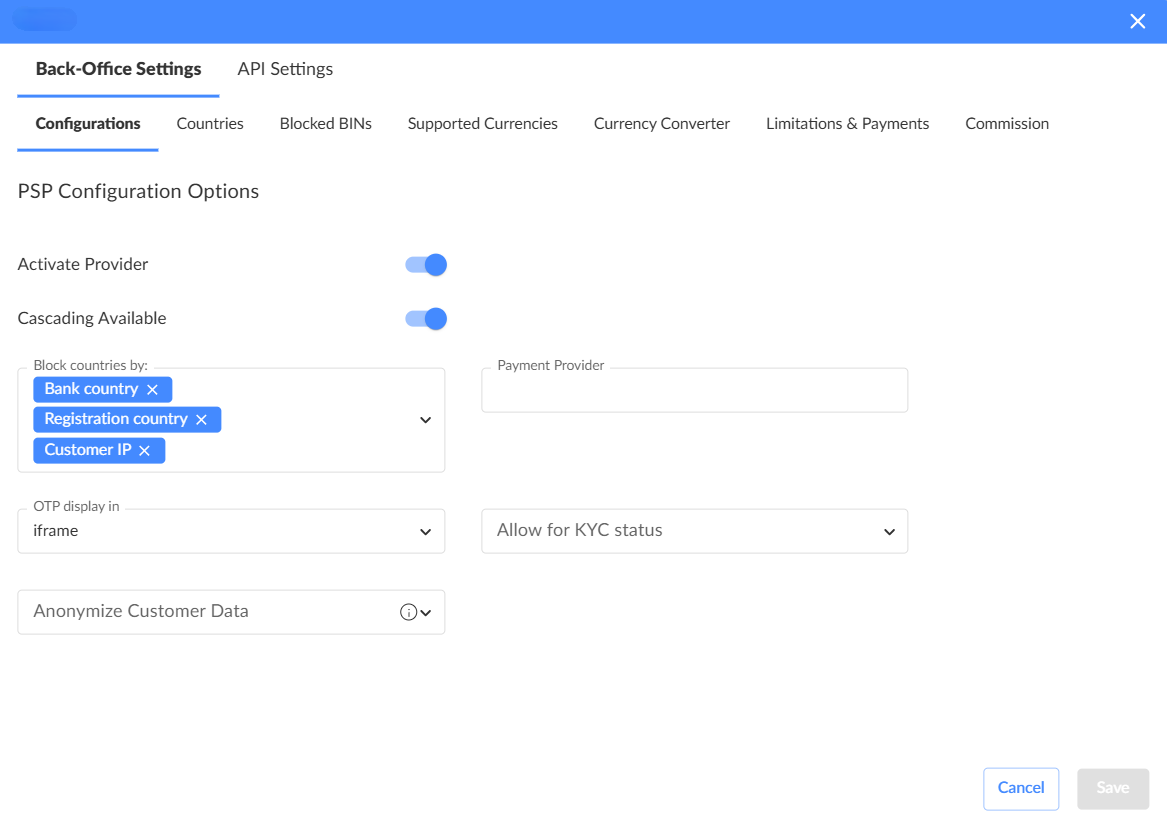
Block countries by
Set the criteria for blocking countries. You can choose from the registration country, bank country, or customer IP country.
OTP display in
Choose how the OTP (one-time password) window should be displayed during the 3DS challenge. You can select one of the following options:
- Iframe: The OTP window will appear on the same page as the deposit page.
- New tab: The OTP window will open in a separate tab to bypass security restrictions from issuer bank.
Anonymize customer data
Specify whether Cashier should anonymize customer data before sending it to the payment provider. You can select one of the following options:
- All: Both the phone number and email address will be modified.
- Email: The email address will be modified.
- Phone: The phone number will be shuffled.
Allow for KYC status
This setting maps statuses between the client CRM and the Cashier system. The mapping can be customized to fit the specific needs of the CRM.
2. Countries
Specify the countries where the PSP is allowed to process transactions. By default, all countries are enabled.
3. Blocked BINs
Add or remove BINs (bank identification numbers) to restrict certain payment methods from processing payments through the PSP.
4. Supported currencies
Set the currencies that the PSP can process. Ensure these currencies match the brand settings to prevent conversion issues.
5. Limitations and payments
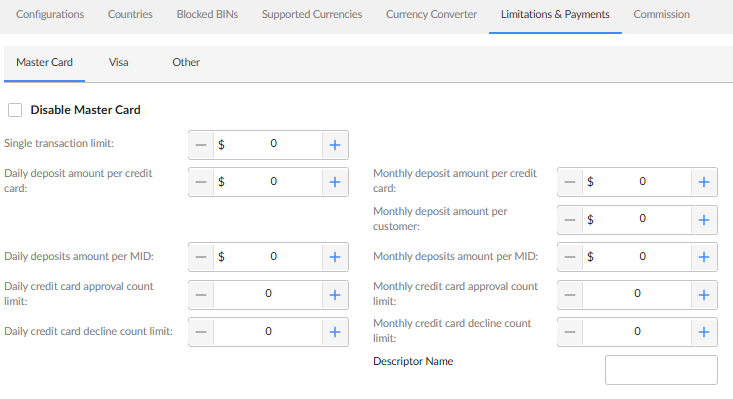
Follow these guidelines to configure limits for a specific provider:
- Set transaction limits based on customer, card, or region.
- Define the minimum and maximum deposit amounts for each specific provider.
- Limits can be configured independently, but validations are in place to prevent incorrect settings.
- Ensure the following relationships between transaction limits:
- The single transaction limit should be less than or equal to all other limits.
- The daily limit should be less than or equal to the corresponding monthly limit.
- The per credit card limit should be less than the per MID or per customer limits.
- The per customer limit should be less than or equal to the per MID limit.
- The approval count limits SUCCESS transactions.
- The decline count limits FAILED transactions.
- A value of '0' is considered as no limit.
6. Currency converter
The Currency Converter allows you to create rules for converting amounts between:
- Currency from — the currency of your products, services, or items
- Currency to — the PSP’s (payment provider’s) processing currency
Currency Converter ensures consistent and controlled currency conversion during payment processing.
This feature is available for both PSP and APM providers. You must configure it separately for each payment provider.
Adding a currency conversion rule
To create a new rule:
- Click the Add Converter Rule button in the top-right corner.
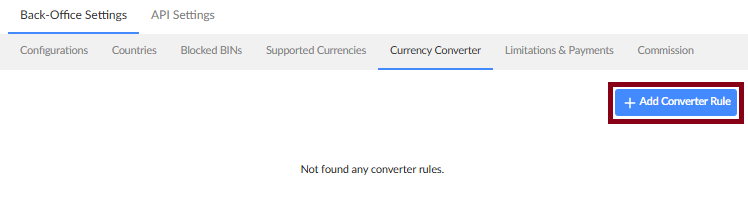
- A blank row will appear in the main area.
- Configure the parameters described below.
Rule parameters
Each currency conversion rule includes the following parameters:
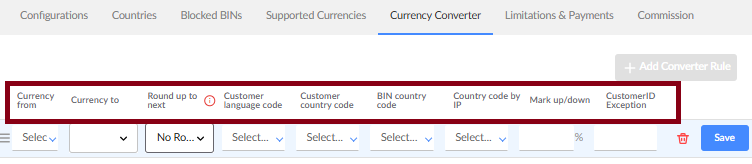
- Currency from (required)
The original currency in the conversion pair — typically the currency of your products, services, or items. You can select one, multiple, or all currencies. The rule will apply to transactions initiated in the selected source currency(ies).
- Currency to (required)
The target currency used by the PSP (payment service provider). Only one currency can be selected. All selected source currencies will be converted into this currency.
- Round up to next
Defines how converted amounts are rounded during payment processing. Available options include: no rounding, rounding to the next whole number, ten, hundred, or thousand. Proper rounding helps prevent minor discrepancies between the Cashier and the payment provider and ensures smoother transaction processing.
Rounding the amount 4441.49 USD
- Next whole → 4442.00 USD
- Next tens → 4450.00 USD
- Next hundred → 4500.00 USD
- Next thousand → 5000.00 USD
If no rounding is selected, the amount remains 4441.49 USD.
- Customer language code (required)
The language set in the customer’s account. Multiple languages can be selected. The rule will apply only to customers whose account language matches the selected value(s).
- Customer country code (required)
The country of residence provided by the customer during registration. Multiple countries can be selected. The rule applies only to customers registered in the selected country or countries.
- BIN country code
The country of the issuing bank, determined by the card’s BIN (Bank Identification Number). This parameter allows you to apply rules based on the bank’s location.
- Country code by IP (required)
The country detected from the customer’s IP address at the time of payment. Multiple countries can be selected. This ensures the rule is applied based on the customer’s physical location.
- Customer ID exception
Specifies one or more customer IDs that are excluded from this rule. The rule is intended for special cases or negotiated conditions.
- Mark Up/Down %
Defines the adjustment applied to the official exchange rate, expressed as a percentage.
- 100% applies the official exchange rate.
- If the field is left blank, the default value of 100% is used.
- The minimum adjustment step is 0.01%.
For calculation details and examples, see the How mark up/down works section.
Saving a currency conversion rule
After configuring the rule:
- Review all parameters carefully.
- Save the rule.
- Proceed with configuring cascading rules for card payments, if required.
How mark up/down works
The configured percentage adjusts the official exchange rate to determine the final rate applied to the customer.
- If the percentage is less than 100%, it is a mark-down — the customer pays less than the official exchange rate.
- If the percentage is more than 100%, it is a mark-up — the customer pays more than the official exchange rate.
For the USD/USD pair, assume the official (“raw”) exchange rate is 1.0 USD.
- Without any rule applied, or with a 100% rate, the customer needs to sell 100 USD to buy 100 USD.
- With a 110% mark-up, the rate becomes 1.0 × 110% = 1.10 USD. To buy 100 USD, the customer needs to sell 110 USD instead of 100 USD.
- With a 90% mark-down, the rate becomes 1.0 × 90% = 0.90 USD. To buy 100 USD, the customer needs to sell 90 USD instead of 100 USD.
1.3. Cascading rules
Cascading rules enable Cashier to determine the most suitable payment provider for a transaction by evaluating each customer deposit request against a set of criteria. These criteria can include BIN country, deposit amount, currency, card type, and more.
By applying cascading rules, Cashier ensures efficient transaction processing while minimizing declined payments.
1.3.1. How cascading rules work
- Rule evaluation
- Each card payment request (e.g., deposit amount, BIN, customer email) is checked against the active rules in the Cascading Rules settings.
- Rules are applied in top-to-bottom order, starting from the first active rule down to the default rule.
- Active rules are all rules listed above the default rule.
- Selecting payment providers
- If a request matches all criteria of a rule, the payment provider is chosen from the Selected providers list of that rule, in order from top to bottom.
- If the first provider declines the request (e.g., due to a suspicious transaction or a blacklisted bank), Cashier tries the next provider in the list until the transaction succeeds or all providers decline.
- Default rule
- If no provider in the matched rule succeeds, Cashier uses a provider from the default rule, which has no criteria and is always listed at the bottom.
- If all providers in the default rule decline the request, the transaction is permanently canceled, and the customer is prompted to retry the payment.
1.3.2. Actions with Cascading Rules
Accessing Cascading Rules
- Go to Brand Settings > Cascading Rules in the back-office menu.
- The list of existing rules will be displayed.

Adding Cascading Rules
- Click New Cascading Rule at the top-right corner of the screen.
- In the Cascading Rules Settings window, set the criteria and select payment providers. All fields are optional.
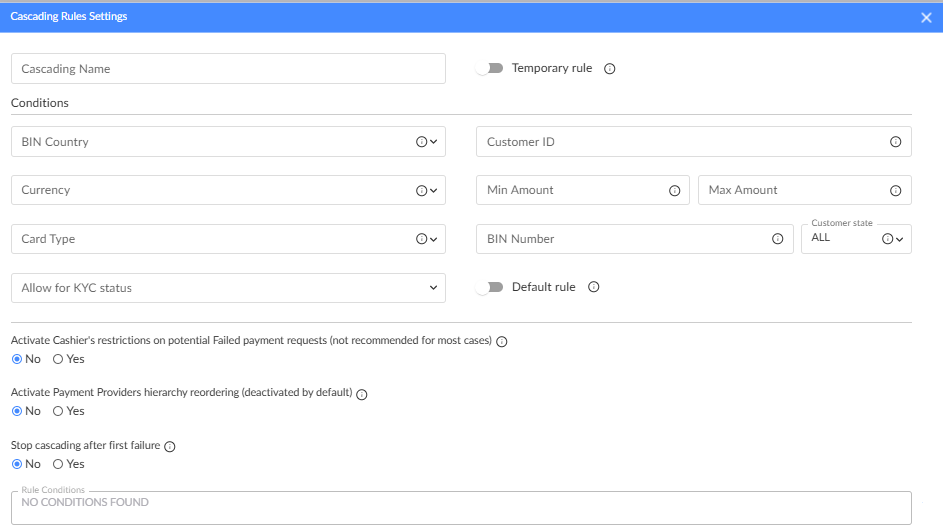
Cascading Rules settings
-
Temporary rule: Create a rule that automatically expires at a specific date and time. The expiration is set to one hour after the next full hour (e.g., created on 10.06.2025 at 12:29, expires at 14:00).
-
BIN country: Choose the country where the customer's bank is registered. Multiple options can be selected.
-
Currency: Multiple options can be selected.
-
Card type: Multiple options can be selected.
-
Allow for KYC status: Multiple options can be selected.
-
Customer ID: Enter one ID per rule. The rule will only apply to the customer with that ID.
-
Deposit amounts: Specify a minimum, maximum, or a range for the deposit amount. The amount is set in USD, regardless of the selected currency.
-
BIN number: Enter one BIN per rule.
-
Customer state: Choose whether the rule applies to first-time (FTD) or repeated (RTD) deposits.
-
Rule condition: View the final condition that determines how the rule is applied. This is a read-only field.
-
Default rule: Only one default cascading rule ("No Conditions Found") can exist. The Default rule toggle controls its creation:
-
Enabled – Allows creation of the default rule (if it does not already exist).
-
Disabled – Prevents creating rules without conditions.
If you attempt to create a rule without conditions before a default rule exists, you will be prompted to either add conditions, or mark the rule as the default rule.
Additional settings
- Activate Cashier's restrictions on potential failed payment requests (not recommended for most cases): Cashier’s internal cascading restrictions help prevent fraudulent activity and reduce the risk of chargebacks from the PSP due to repeated failed transaction attempts.
Cashier logs transaction failed messages from the PSP. After multiple consecutive failures, it blocks further requests before sending them to the PSP.
Cashier does not apply any restrictions and allows repeated deposit attempts without limits. This is the default setting.
- Activate payment providers hierarchy reordering (deactivated by default): This option allows Cashier to adjust the order of payment providers within the cascading rule based on previous failed attempts.
The cascading rules have 4 providers: Provider 1, Provider 2, Provider 3, and Provider 4.
If the first transaction attempt fails with Provider 1 and Provider 2, the process will stop due to a 3DS challenge failure on Provider 2.
For the next transaction attempt with the same card, the order of payment providers will change based on the previous failures. For the next 3 hours, the providers will be used in the following order: Provider 3, Provider 4, Provider 1, Provider 2.
The cascading rules have 4 providers: Provider 1, Provider 2, Provider 3, and Provider 4.
If the first transaction attempt fails with Provider 1 and Provider 2, the process will stop due to a 3DS challenge failure on Provider 2.
All subsequent transaction attempts will follow the same order of payment providers: Provider 1, Provider 2, Provider 3, Provider 4.
- Stop cascading after first failure: This setting determines whether the cascading process should stop after the first failed transaction attempt.
Cascading stops after the customer's first failed transaction. No other providers in the list will be tried.
All providers in the cascading list will be tried, even if some transactions fail.
- Payment providers: This section contains two lists: Available and Selected providers. To add a provider to the Selected list, use the controls on the screen or drag and drop it from the Available list. Deposit requests will only be processed according to the rules in the Selected list, in the order they are arranged.
The hierarchy in the Selected list is crucial for the correct execution of the rules. For more details, see How cascading rules work section.
Saving Cascading Rules
- Click Add Rule to save the new rule. The rule is added at the bottom of the list.
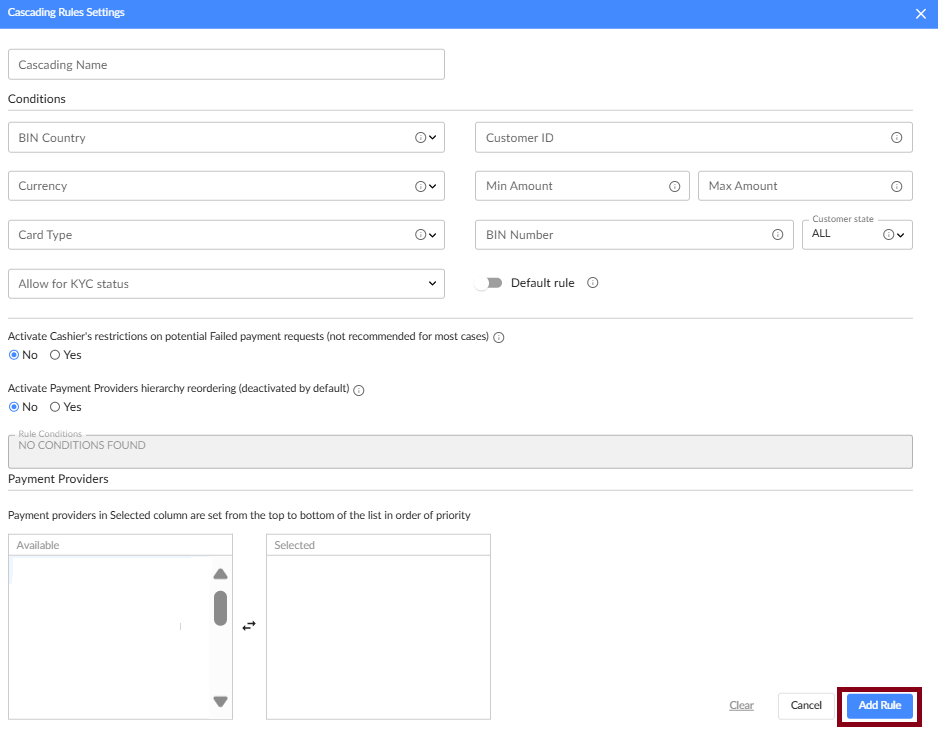
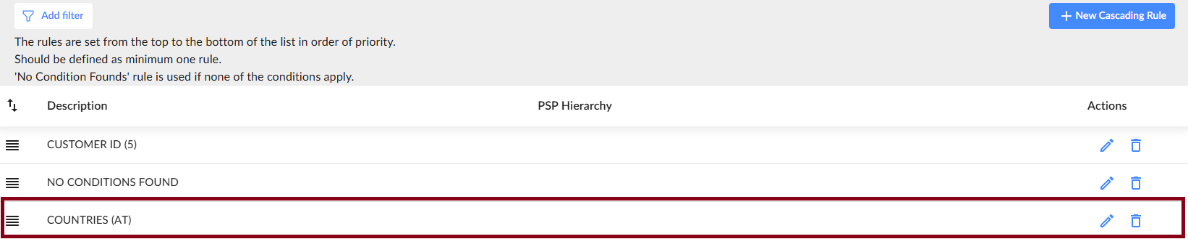
- To activate, move it above the default rule. Rules below the default are inactive.
The hierarchy in the cascading rules list is crucial for the feature to function correctly. The rules are processed in the exact order they are listed.
For example, the rule highlighted in the screenshot is inactive, so Cashier will not apply it to any payment requests.
Resetting Cascading Rules
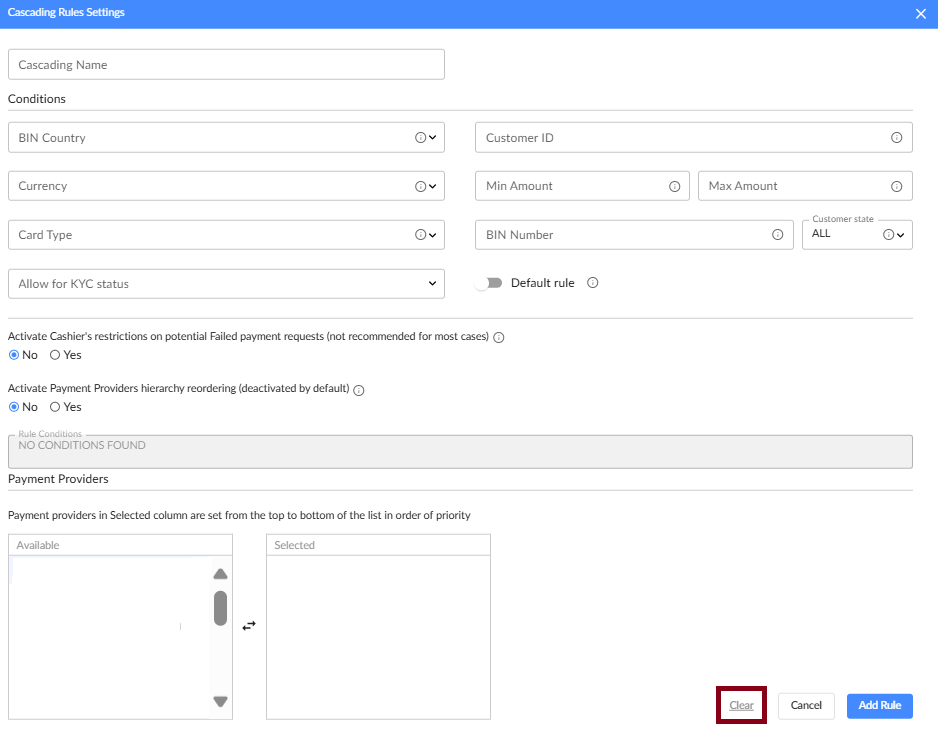
Click Clear at the bottom-right corner of the window to reset all rule data.
Filtering Cascading Rules
- Click Add Filter at the top-left corner of the screen.
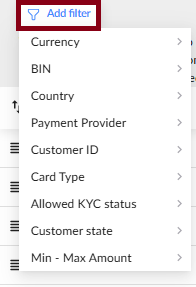
- Select filter criteria and click Apply Filter.
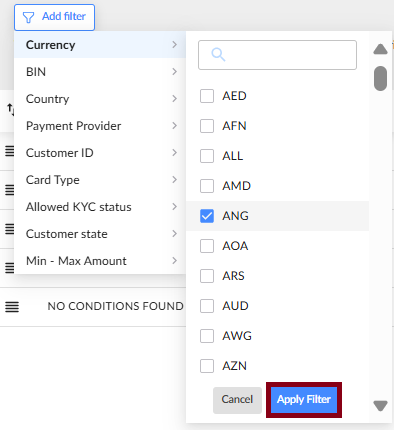
- The applied filters appear next to the Add Filter button. You can remove them individually or clear all filters at once.

Managing existing Cascading Rules
To manage existing rules, you can perform the following actions:
- Edit: Modify and save the rule.
- Delete: Permanently remove a rule.
- Disable: Move a rule below the default rule to temporarily deactivate it; it can be reactivated later.

1.4. Alternative payment Method (APM) Configuration
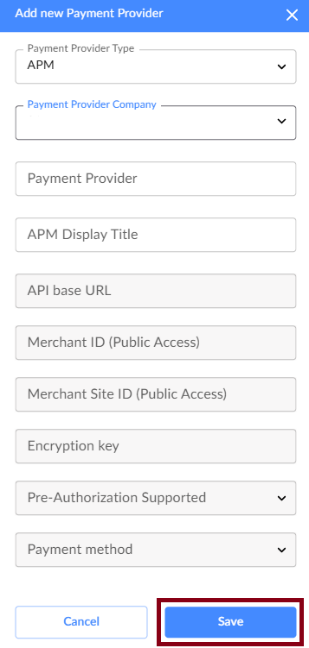
Before following the steps, it’s helpful to understand the key fields you’ll encounter:
- Payment Provider: The name of the payment method that will be displayed in the Back Office.
- APM Display Title: The name of the payment method shown to the end user on the deposit page.
The client specifies the names in these fields independently.
To add an alternative payment provider:
- Navigate to Provider Settings in the back office.
- Click Add New Payment Provider.
- Choose APM and select the payment provider company from the list.
- Enter the required API credentials and authentication details.
- Click Save to apply the changes and proceed to advanced settings.
1.4.1. Accessing APM advanced settings
To access the advanced settings for the newly created APM, click Edit on the right side of the payment provider list.

1. Configurations
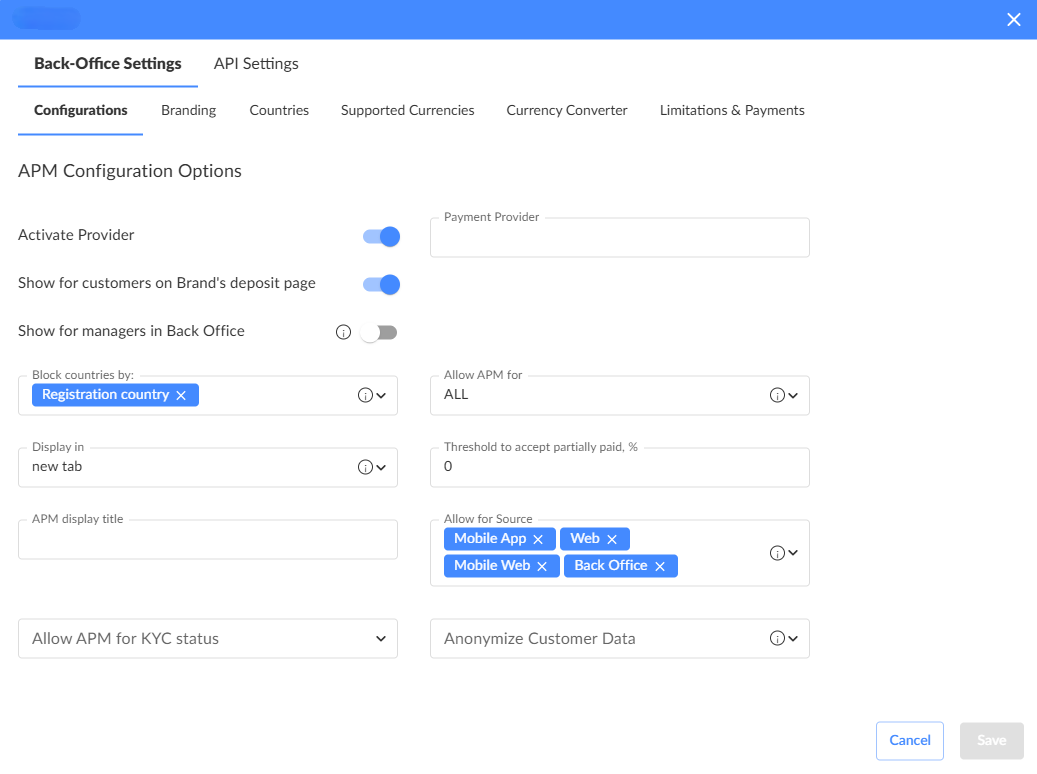
Note: To ensure the provider has access to the Withdrawal Form, the Show for managers in Back-Office toggle should be enabled.
Block countries by
Set the criteria for blocking countries. Choose one or both of the following parameters: customer IP or registration country.
Allow APM by
Set the APM availability criteria on the customer’s deposit page. Choose one or both of the following parameters: customer IP or registration country.
Display in
Configure how the provider's page will appear to the customer. The following options are available:
- Iframe: The provider’s page is displayed within an embedded frame on the deposit page.
- New tab: The provider’s page opens in a new browser tab.
- Page: The provider’s page is shown in the entire browser window.
Allow APM for
Define whether to display the current APM on the deposit page based on customer deposit history:
- All deposits: Display the APM for all customers, regardless of their deposit history.
- First-time deposit (FTD): Display the APM only for customers making their first deposit.
- Repeat-time deposit (RTD): Display the APM only for customers who have previously made a deposit (i.e., not their first deposit).
Allow for source
Determine the platforms on which the payment provider can be utilized. For example:
- All (mobile app, web, mobile web, back-office): Enables the payment provider across all platforms.
- Web, mobile web: Enables the payment provider on web and mobile web platforms, making it inaccessible to mobile app and back-office users.
Anonymize customer data
Specify whether Cashier should anonymize customer data before sending it to the payment provider. You can select one of the following options:
- All: Both the phone number and email address will be modified.
- Email: The email address will be modified.
- Phone: The phone number will be shuffled.
Allow for KYC status
This setting maps statuses between the client CRM and the Cashier system. The mapping can be customized to fit the specific needs of the CRM.
2. Branding
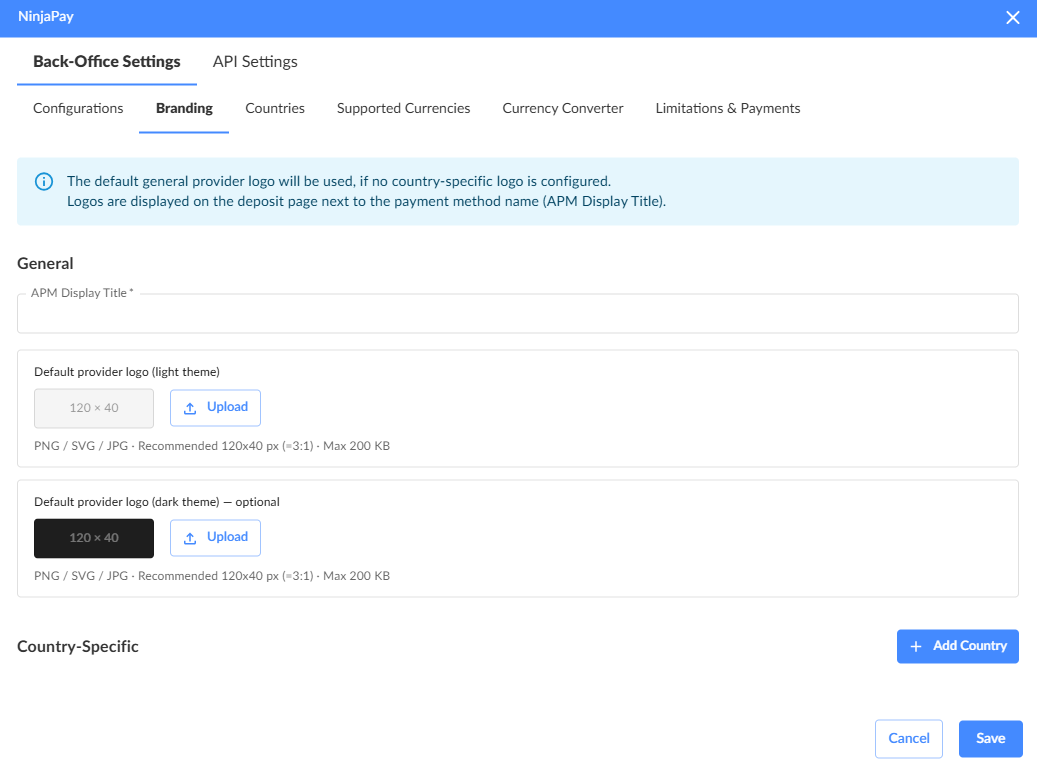
Configure logos for payment providers by setting a default logo for each provider and optionally overriding it for individual countries.
3. Countries
Specify the countries where the APM is allowed to process transactions. By default, all countries are enabled.
4. Supported currencies
Set the currencies that the APM can process. By default, all currencies are supported unless custom currencies are specified.
5. Currency converter
The Currency Converter allows you to create rules for converting amounts between:
- Currency from — the currency of your products, services, or items
- Currency to — the APM’s (Alternative Payment Method) processing currency
The Currency Converter ensures consistent and controlled currency conversion during payment processing.
This feature is available for both PSP and APM providers. You must configure it separately for each payment provider.
Adding a currency conversion rule
To create a new rule:
- Click the Add Converter Rule button in the top-right corner.

- A blank row will appear in the main area.
- Configure the parameters described below.
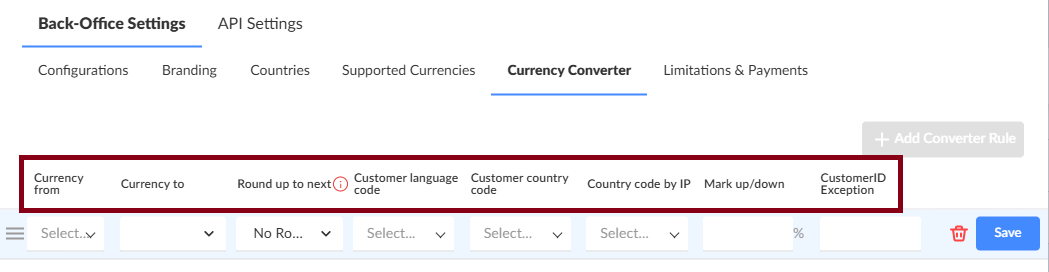
For more information about these parameters, see the Accessing PSP advanced settings section.
6. Limitations and payments
On this page, the following limits can be configured:
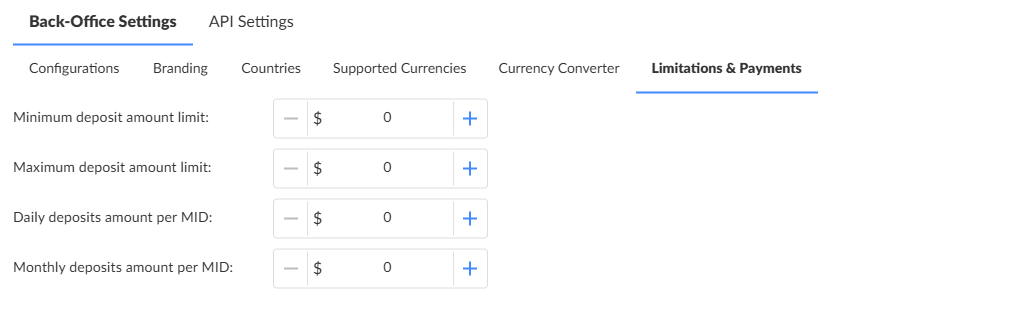
The limits can be configured independently, but validations are in place to ensure correct settings and prevent misconfigurations.
- The minimum deposit amount limit must be less than or equal to the maximum deposit amount limit.
- The maximum deposit amount limit must be less than or equal to the daily deposit amount per MID.
- The daily deposit amount per MID must be less than or equal to the monthly deposit amount per MID.
- A value of 0 means there is no limit set.