3. Other Settings
3.1. Blocked countries
You can add countries to the blocked list and define the conditions under which users will be blocked from depositing.
Adding a blocked country rule:
- Click Add Blocked Country in the top-right corner.
- You can block one or more countries based on the following criteria:
- The country specified in the customer’s registration details.
- The IP address associated with the customer’s registration country.
- The type of deposit made by the customer (e.g., FTD, STD, or both).
- Click Save to apply the changes.
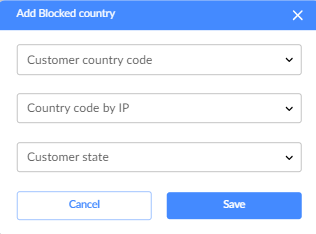
Managing blocked country rules:
You can perform the following actions:
- Edit: Modify and save the rule.
- Delete: Remove the rule and confirm the deletion.

3.2. Blocked customers
To block a specific customer, follow these steps:
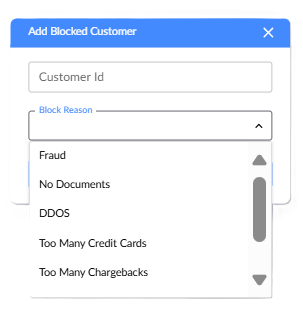
- Click the Add Blocked Customer button.
- Enter the Customer ID and the reason for blocking.
- Click Save to apply the changes.
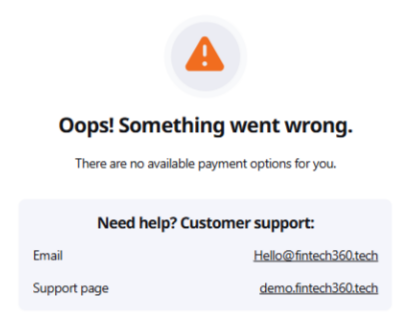
Once blocked, the customer will not be able to make any deposits and will see the following error message: "There are no available payment options for you."
To remove a customer from the blocked list:
- Click the Remove icon on the right of the blocked customer's entry.

- Confirm the deletion.

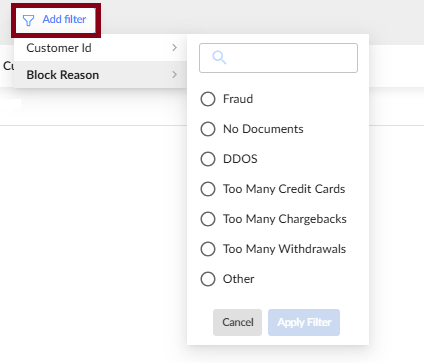
You can organize the list of blocked customers using the following filters:
- Customer ID
- Block reason
3.3. Block BINs/CCs
Block specific BIN ranges by adding them to the blacklist. This will prevent customers from using cards issued by certain banks to make deposits.
You can block card deposits based on the following criteria:
- BIN country: Blocks all credit card transactions from the selected country.
- BIN bank: Blocks all credit card transactions from the selected bank.
- BIN/Credit card: Blocks all credit card transactions from the specified card.
Card blocking will only work if a BIN number is also specified.
You can perform the following actions:
- To add a new rule, click one of the 3 options in the top-right corner of the page.

- Use the Add filter button at the top-left to filter your BIN/CC blocking rules.

- To delete a rule, click the Remove icon on the right and confirm the action.

3.4. Customer cards
This screen displays a list of cards grouped by Customer ID. You can:
- Add a unique card
Click Add Credit Card as Unique in the top right to manually assign a card to a customer ID.

- Filter the list
Use the filter in the top left to search for specific cards or customers.

- Disable unique card settings
Toggle off the Is Unique switch to allow other customers to add the same card to their account.

3.5. Whitelist customers
Whitelist customers by their emails to grant test visitors access to the website's deposit page under test conditions. These customers can view the deposit page and perform test transactions without minimum or maximum limits set by the brand's currency settings.
- Click Add Whitelisted Customer to add a new customer.

- Use the Add Filter button at the top-left to filter your whitelisted customers.

- Click the Remove icon next to a customer's entry to delete them from the whitelist. Confirm your action.

3.6. User management
The User Management screen provides a comprehensive list of all users, including their details and permissions.
Depending on the role, you can perform the following actions:
- Add a new user:
Click Add New User at the top right and enter the user details.

- Edit user information:
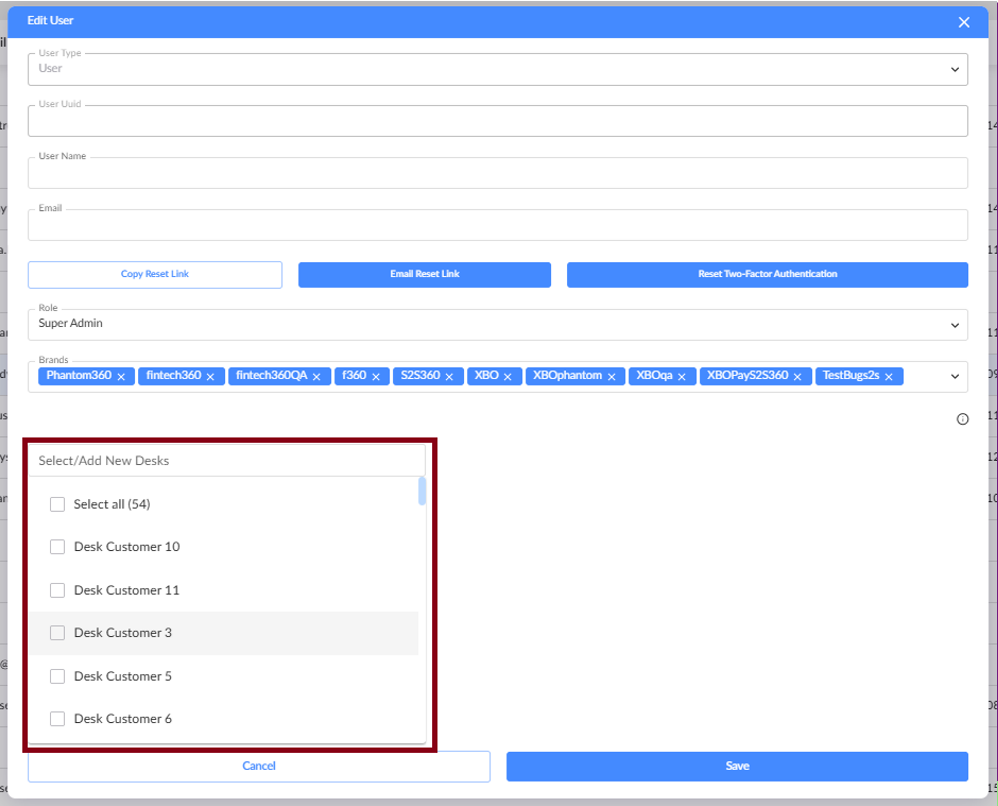
Click Edit at the top right to modify user details (e.g., name, role, password, brand, or desk).

Desk settings control which transactions a user can access:
- If the user has no Desk items assigned, the user can access all transactions.
- If a transaction has no Desk information, it is accessible to all users.
- If a transaction has a Desk value, a user can access it only if the transaction’s Desk value starts with one of the Desk items assigned to that user.
- New Desk values can be added, and they will follow the same matching rules.
- Filter users:
Click Add Filter at the top left to search for users by email, username, role, or brand.

- Deactivate users:
Toggle off the Is Active switch to deactivate users.

For more information about roles and permissions in Cashier, refer to the Roles and Permissions section.
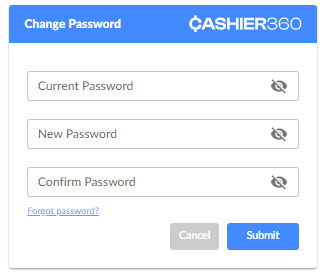
3.7. Change password
Use this screen to change your user password.
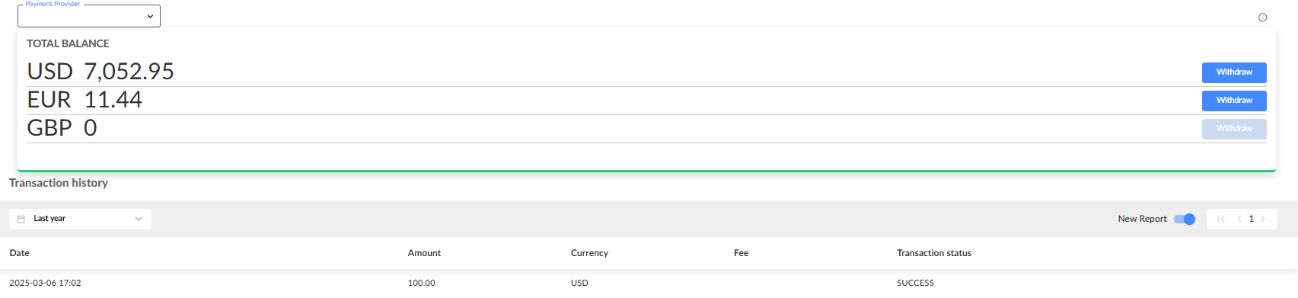
3.8. Account management
View the balance of the brand's merchant account, withdraw funds, and view the transaction history.
3.9. Roles and permissions
| Role / Access | Viewer | Cascading rules manager | Depositor | Depositor manager | Compliance | Editor | Editor manager | Admin |
|---|---|---|---|---|---|---|---|---|
| Dashboard | Full | Full | Full | Full | Full | Full | Full | Full |
| Deposits | Partial | Partial | Full | Full | Full | Full | Full | Full |
| Deposits, CRM and Provider Communication Logs | No | No | No | Yes | No | No | Full | Full |
| Deposits, Change Transaction Status | No | No | Full | Full | Full | Full | Full | Full |
| Deposits, CSV | No | No | No | No | No | Full | Full | Full |
| Deposit Form | No | No | Partial | Full | No | Full | Full | Full |
| Withdrawal Form | No | No | No | No | No | No | No | Full |
| Payment Services Settings | No | No | No | No | No | Partial | Partial | Full |
| Payment Services Settings --> Developer Settings | No | No | No | No | No | No | No | Full |
| Payment Services Settings --> Developer Settings --> API Settings | No | No | No | No | No | No | No | Full |
| Payment Services Settings --> Developer Settings --> Whitelisted Countries | No | No | No | No | No | No | No | Full |
| Payment Services Settings --> BackOffice Settings | No | No | No | No | No | Full | Full | Full |
| Payment Services Settings --> BackOffice Settings -- > Blocked Countries | No | No | No | No | No | Full | Full | Full |
| Payment Services Settings --> BackOffice Settings - > Blocked Customers | No | No | No | No | Yes | Yes (+ Limited Editor) | No | Yes |
| Payment Services Settings --> BackOffice Settings --> Blocked BINs | No | No | No | No | No | Full | Full | Full |
| Payment Services Settings --> BackOffice Settings -- > Default Currency | No | No | No | No | No | Full | Full | Full |
| Payment Services Settings --> BackOffice Settings --> Support ed Currencies | No | No | No | No | No | Full | Full | Full |
| Payment Services Settings --> BackOffice Settings --> Currency Converter | No | No | No | No | No | No | Full | Full |
| Payment Services Settings --> BackOffice Settings -> Limitations & Payments | No | No | No | No | No | Full | Full | Full |
| Payment Services Settings --> BackOffice Settings -> Limitations & Payments --> General (for all credit cards) | No | No | No | No | No | Full | Full | Full |